Turn a Kobo or phone remote into a Kindle page turner
Amazon's Kindle Click costs $34.99. Some $10–20 Kobo and phone remotes on Amazon can be updated to work with a Kindle, and it takes about ten minutes.
We sell page turners, so we have a stake in this. We don't sell on Amazon and have no connection with the listings below.
Will your Kindle work?
You need one of these, on Kindle software 5.20.1.0.2 or later (check under Settings › Device Options › Device Info):
- Kindle (2024)
- Kindle Paperwhite (12th gen)
- Kindle Colorsoft
- Kindle Scribe (2024)
- the 2026 Kindles
- Kindle Scribe (2022)
As far as we know, older Kindles don't support Bluetooth page turners yet.
One body, many firmwares
The two biggest page-turner makers we know of are Zhilian Zongwei (智联纵维) and Hanlinyue (翰林阅). This guide covers three of Zhilian Zongwei's remotes, HBTR001, HBTR002 and HBTR003. Each is sold in several editions: the same shell with different firmware for different readers.
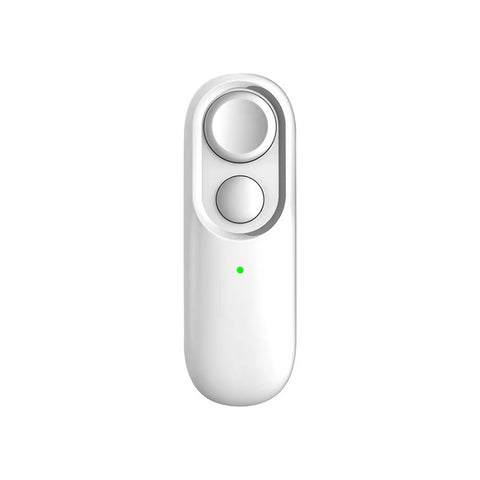
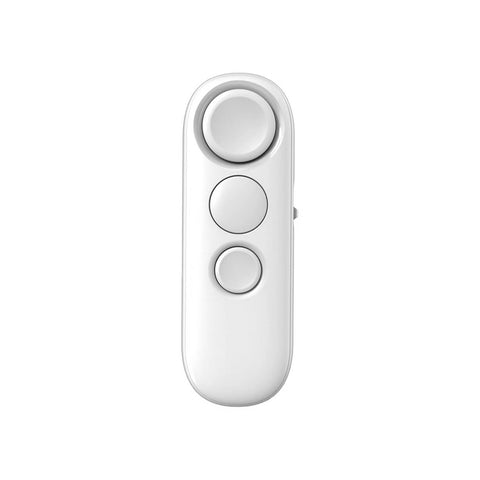
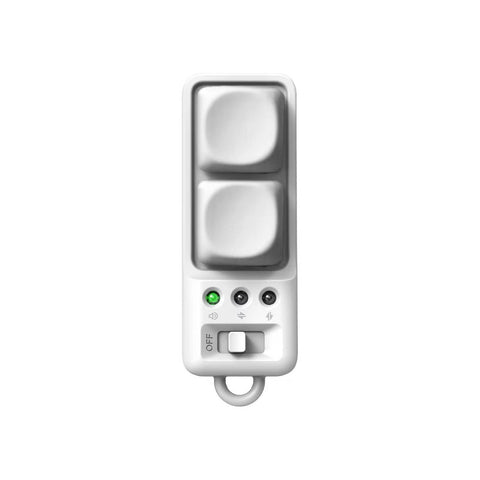
| HBTR001 · Mini | HBTR002 · Ergo | HBTR003 · Keycap | |
|---|---|---|---|
| Looks like | two round buttons | three round buttons, mode switch on the side | two mechanical keys, three LEDs, slide switch |
The full name tells you the edition:
| Edition | Made for |
|---|---|
| HBTR001-E | Kindle |
| HBTR001-K | Kobo |
| HBTR001-XT | Xteink |
| HBTR001 (no letters) | Android e-readers and phones |
| HBTR002-XTE | three modes on the switch: Kindle, Xteink, Android e-readers |
| HBTR002-X | phones and tablets |
| HBTR002-XT | Xteink (older edition) |
| HBTR002-KD | iFlytek |
| HBTR003-XTE | three modes on the switch: Kindle, Xteink, Android e-readers |
| HBTR003-X | phones and tablets |
| HBTR003-KD | iFlytek |
The maker says HBTR002-E and HBTR003-E, Kindle editions of the Ergo and Keycap, are coming soon.
To make a remote work with a Kindle, you install a specific firmware on it. The table below shows which one.
What to buy from Amazon
As of November 4, 2026
| Listing | Price | Update to | |
|---|---|---|---|
| ✅ | Mini for Kobo, HBTR001-K: listing 1 (white), listing 2 | $14.99 | HBTR001-E |
| ✅ | Keycap for phones, HBTR003-X | $16.99 | HBTR003-XTE |
| ❌ | Clicker for Xteink X4, shows up as XT01 | $7.99 | Can't be updated |
- Mini (HBTR001-K): after the update it works only with Kindles. You can usually switch it back to Kobo by installing the K firmware.
- Keycap (HBTR003-X): there's no X firmware to go back to, so you lose the phone swipe modes. After the update, its switch has three modes: Kindle (↕), Xteink and Android readers.
- Xteink clicker: it looks like the Mini, but the maker says it's Xteink-only hardware. A Reddit user found no firmware for it in the official updater.
The maker confirms both updates, and Reddit users have updated the Kobo Mini this way (example). We haven't tried them on these exact remotes ourselves.
Update the firmware
There are two ways to do it, and both install the same files from the maker's server:
- On your phone (iPhone or Android), with the maker's WeChat mini-program
- On a Mac, with our free app, Page Turner Updater
You'll need the remote switched on, with enough battery.
Which file to install:
| Your remote | Install |
|---|---|
| HBTR001-K (Kobo) |
HBTR001-E-2025(10.30) or HBTR001-E-2026(10.30)
|
| HBTR001 (no suffix) |
HBTR001-E-2025(10.30) or HBTR001-E-2026(10.30)
|
| HBTR003-X |
HBTR003-XTE-2025(10.30) or HBTR003-XTE-2026(10.30). One-way: there's no going back |
| Any E or XTE edition | Nothing: it already works with a Kindle |
| XT01 | Nothing: it can't be updated |
2025 or 2026? Most files come in a -2025 and a -2026 version, one for each of two production batches of the chip. You can't tell the batches apart from the outside.
- Try 2025 first.
- If the update stops right away with a key mismatch error, nothing was installed. Install the 2026 file instead.
- If both files are refused, your remote is a different edition than you think.
On your phone: the WeChat mini-program
The maker's updater runs inside WeChat. The screenshots are from an iPhone set to English, updating an Ergo; your list will show your own remote's files.
Get a WeChat account
Skip this step if you already use WeChat.

Step 1
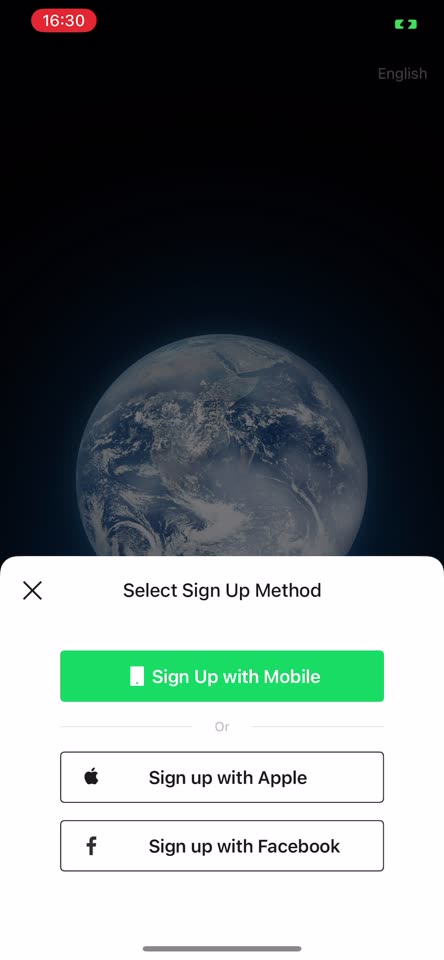
Install WeChat from the App Store or Google Play and tap Sign Up.
Step 2
Pick any sign-up method. Even with Sign up with Apple, WeChat asks for a phone number next.
Step 3
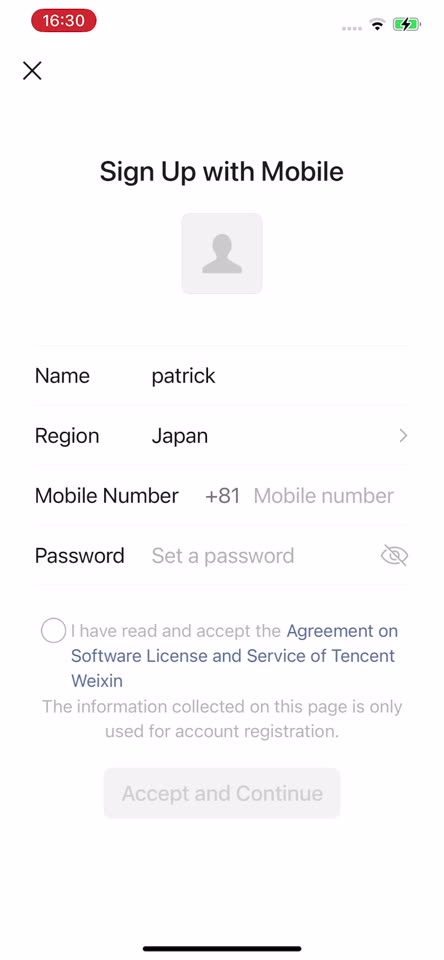
Set Region to your country first (it starts on China's Mainland), then your mobile number and a password. Tick the agreement and tap Accept and Continue.
WeChat then texts you a verification code. If you get stuck, use the Mac route instead.
Open the 智联纵维 mini-program
Step 4
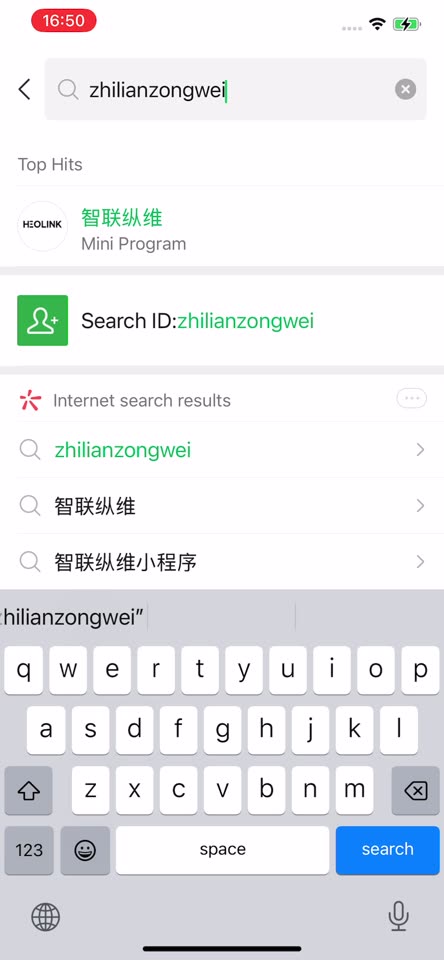
In WeChat, tap the search icon and type zhilianzongwei. Tap the top result named 智联纵维 and marked Mini Program.
Step 5
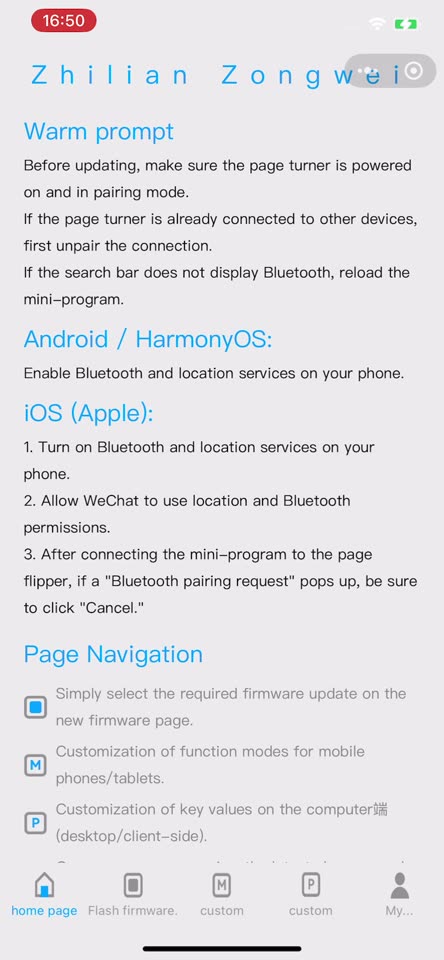
The mini-program is in Chinese, but WeChat can translate it (next two steps).
Step 6
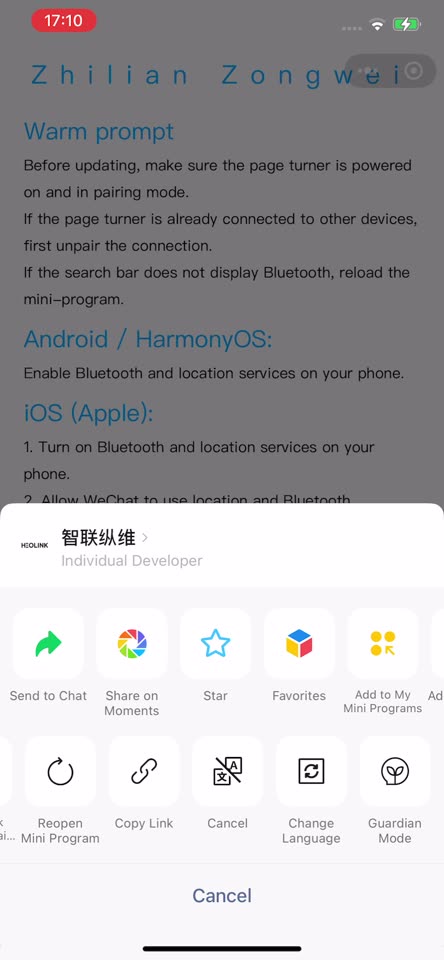
Tap ••• at the top right. In the second row of the menu, swipe left and tap Change Language.
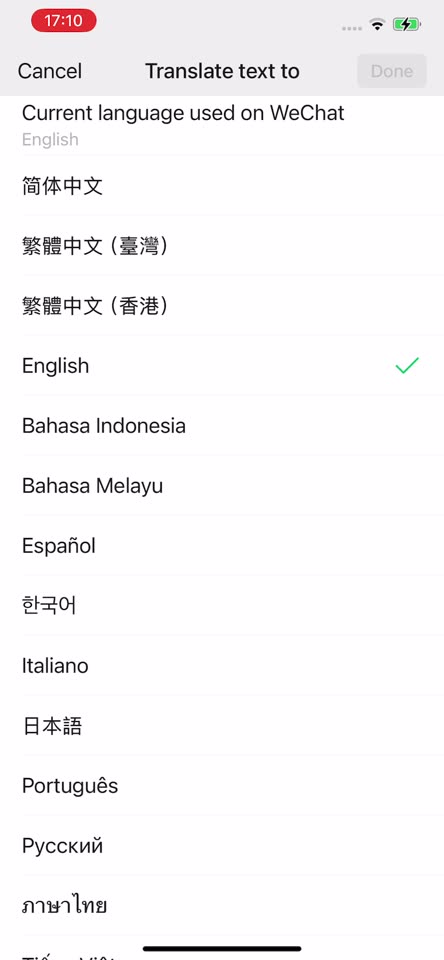
Step 7
Pick English (or your language) and tap Done. The page reloads translated.
It's a machine translation, so a few labels come out odd. They're explained in the steps below.
Connect the remote
Before you start:
- Turn on Bluetooth and Location on the phone, and allow WeChat to use both when it asks.
- Forget the remote wherever it's paired (Kobo, phone, Kindle). Then turn it off and on: it only shows up while it isn't connected to anything.
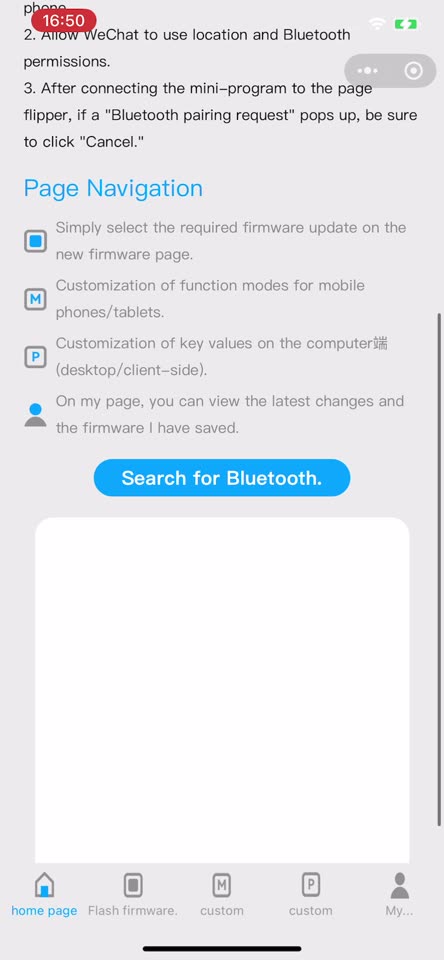
Step 8
On the home page tab, scroll down and tap Search for Bluetooth.
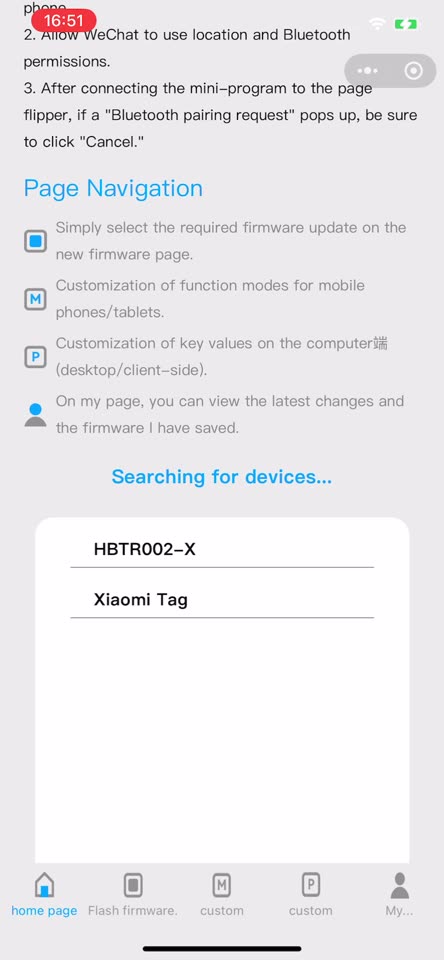
Step 9
Tap your remote (HBTR001… or HBTR003…).
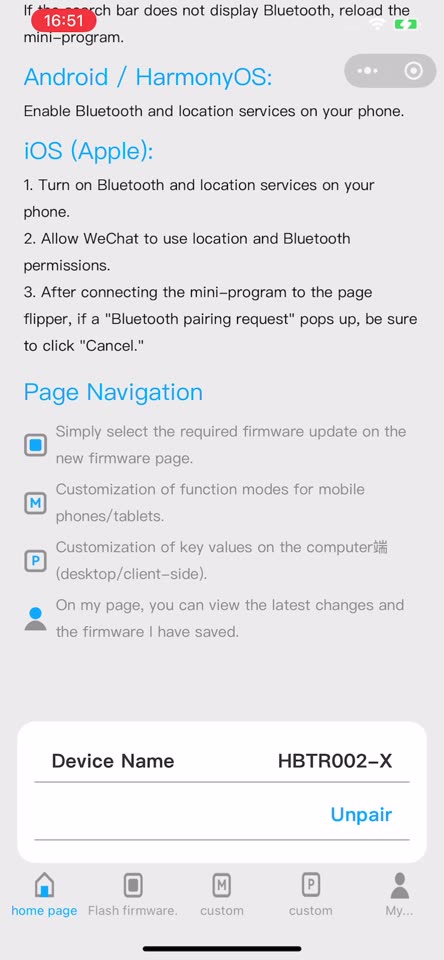
Step 10
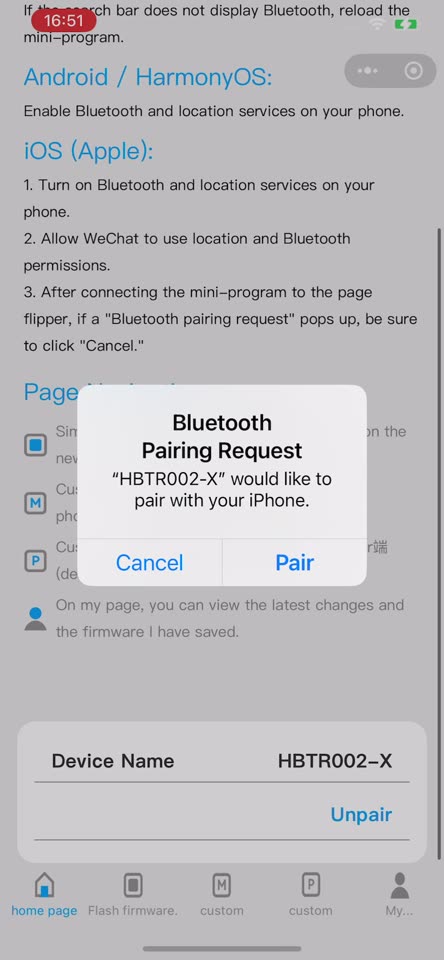
When it shows Device Name and Unpair, it's connected.
Step 11
iPhone: if a Bluetooth Pairing Request pops up, the maker says to tap Cancel.
Remote not in the list? It's probably still connected to another device. Disconnect it there, or turn that device's Bluetooth off. Then turn the remote off and on and search again.
Install the firmware
Step 12
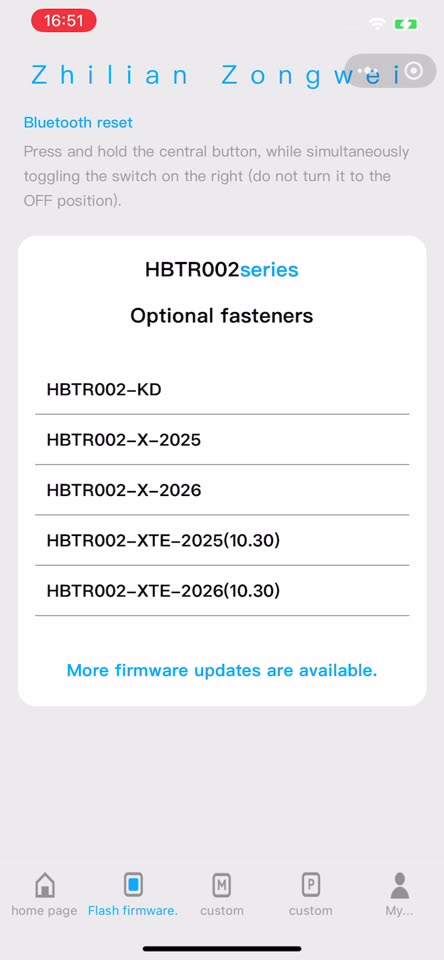
Open the Flash firmware tab at the bottom (the translation calls the files Optional fasteners). Tap the file from the table above.
Step 13
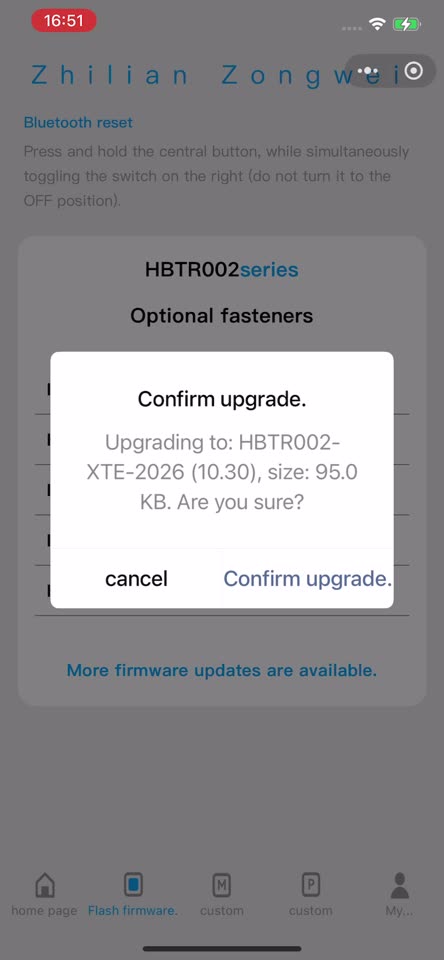
Check the name, then tap Confirm upgrade.
Step 14
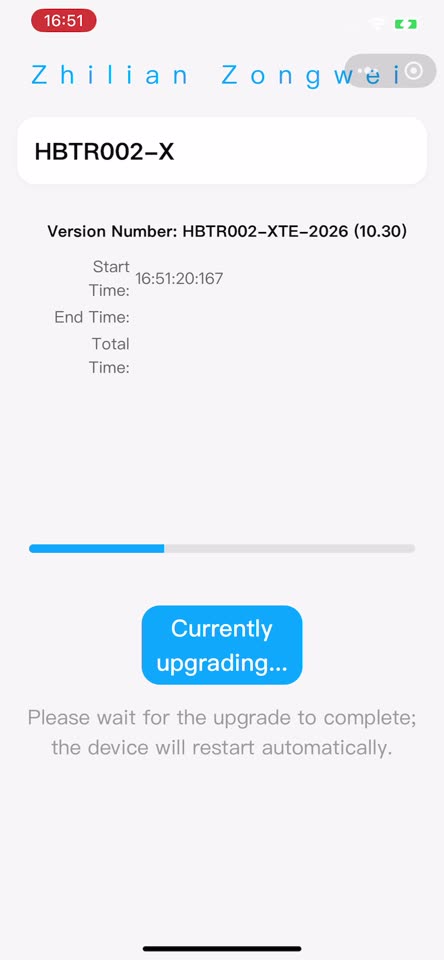
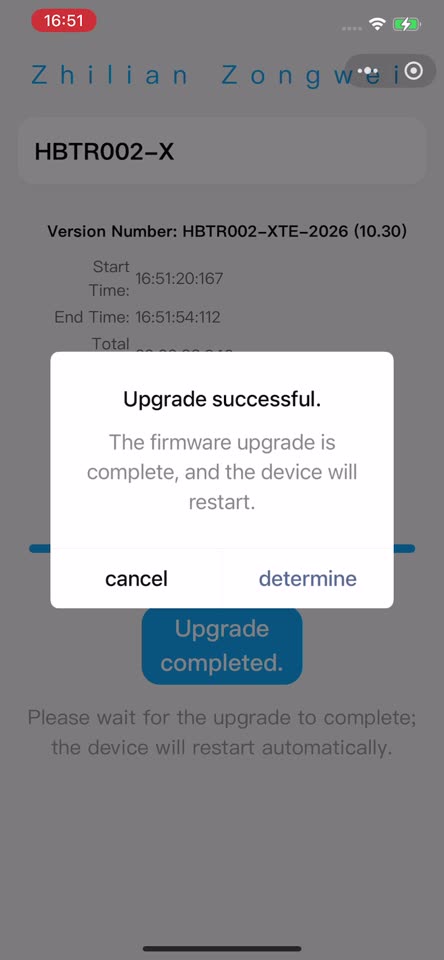
Keep the phone next to the remote and don't press its buttons. Don't leave the mini-program until it's done. It took about 35 seconds for us.
Step 15
Upgrade successful: the remote restarts by itself. Tap OK (the translation says determine), then turn the remote off and on once.
If you see KEY mismatch (文件包返回错误,KEY不匹配), install the 2026 file instead (see 2025 or 2026?).
Disconnect it from the phone
In the mini-program, tap Unpair and close WeChat. If the remote also shows up in the phone's own Bluetooth settings, remove it there too:
- iPhone: tap it and choose Forget This Device.
- Android: choose Unpair.
Turning the phone's Bluetooth off while you pair the Kindle works too.
Then go to Pair it with your Kindle.
On a Mac: Page Turner Updater
We wrote Page Turner Updater, a free, open-source Mac app that does the same update as the mini-program, in English. It needs macOS 12 or later, on Apple Silicon or Intel.
We've mostly tested it on the Ergo, and haven't yet tried it on the HBTR001-K or HBTR003-X.
Install the app
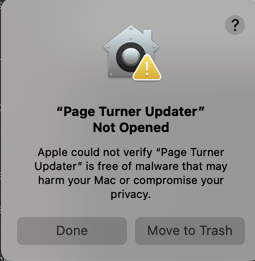
Open the .dmg and drag Page Turner Updater into Applications. The app isn't signed with an Apple developer certificate, so macOS blocks the first launch:
Step 1
Open the app. macOS says "Page Turner Updater" Not Opened. Click Done, not Move to Trash.
Step 2
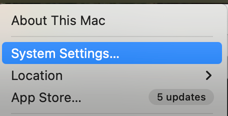
Open the Apple menu › System Settings… › Privacy & Security.
Step 3
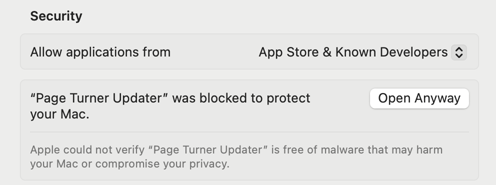
Scroll down to Security, click Open Anyway, and confirm if macOS asks.
Step 4
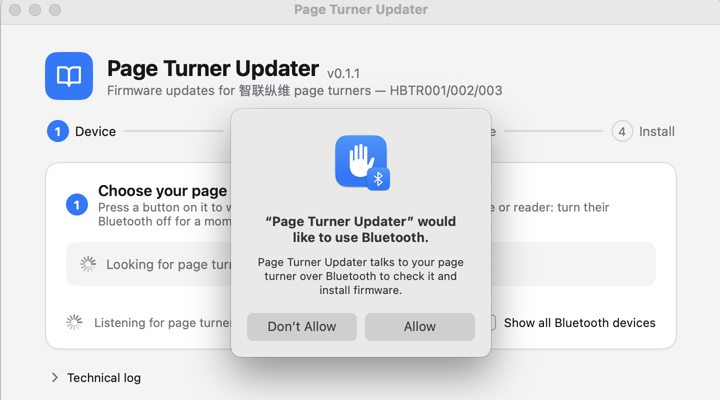
Open the app again and click Allow when it asks to use Bluetooth.
On macOS 14 and earlier, you can also right-click the app and choose Open.
Install the firmware
Step 5
Get the remote ready. If it's paired to a phone, Kobo or Mac, forget it there first.
Step 6
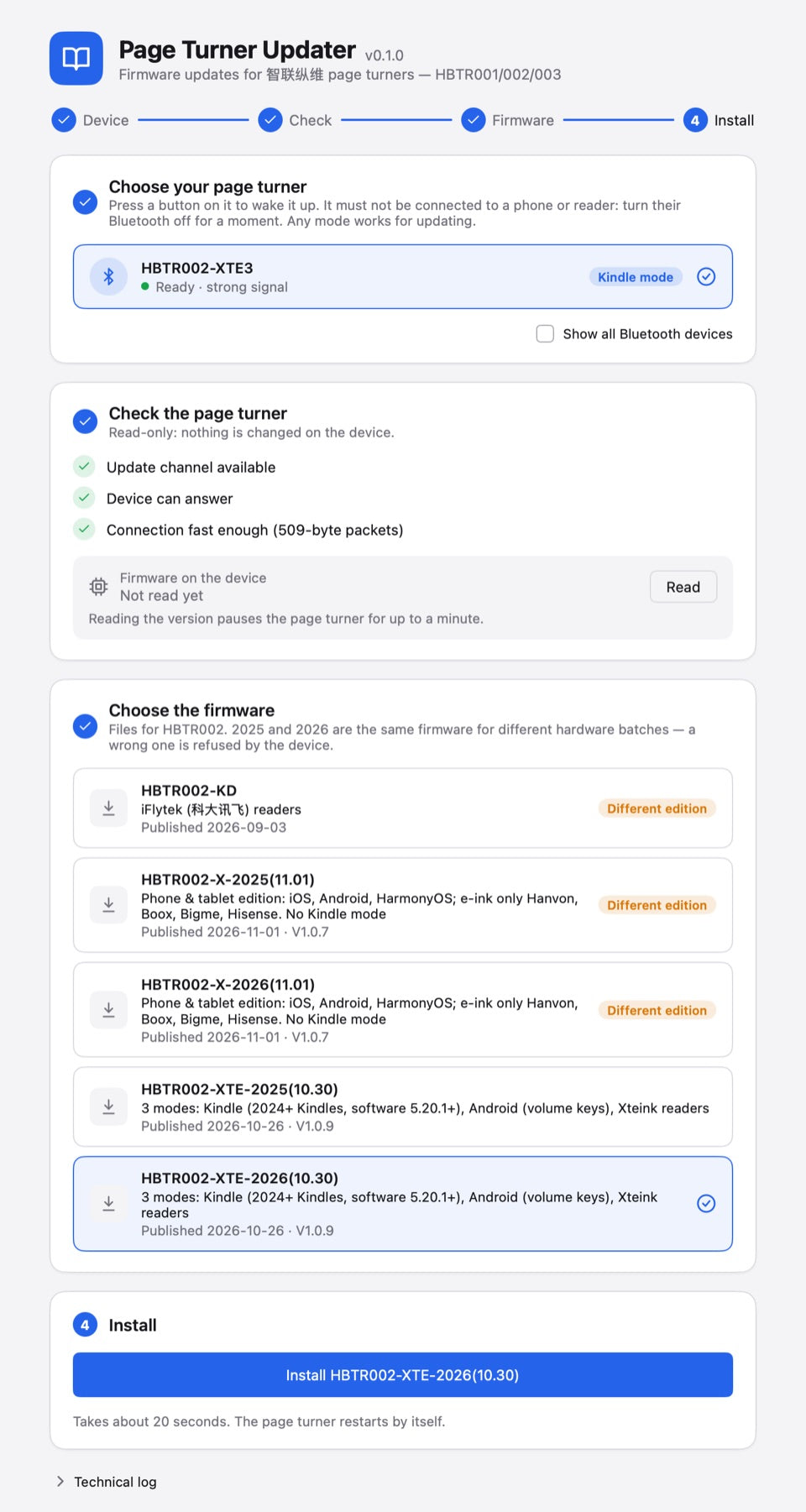
Choose your remote in the app. Check only reads the remote; it doesn't change anything. Then choose the firmware from the table above.
Step 7
Click Install. It takes about 20 seconds. Keep the remote next to the Mac and don't press its buttons. The remote restarts by itself. If macOS asks whether to connect the remote, either answer works.
Step 8
Forget the remote in the Mac's Bluetooth settings.
If something goes wrong:
- The app doesn't find the remote. Press a button to wake it. Make sure it isn't connected to a phone or Kindle, and that the app is allowed in System Settings › Privacy & Security › Bluetooth.
- "key mismatch". Choose the other year's file (2025 ↔ 2026). Nothing was installed.
- The update stopped halfway. Turn the remote off and on, then install again. It continues where it stopped.
- "Wait … s" after reading the version. Reading the version puts the remote in update mode for up to a minute. Wait, or turn it off and on.
The app doesn't include any firmware. It downloads each file from the maker's server, the same list the mini-program uses.
Pair it with your Kindle
- Make sure the remote isn't still connected to the phone or Mac you updated it with.
- Keycap (XTE): set the slide switch to the up/down (↕) position. That's Kindle mode.
- On the Kindle, go to Settings › Bluetooth and pair the remote.
The Kindle doesn't find it? Check your Kindle's model and software version (see above). On a Keycap, check that the switch is on ↕. Also make sure the remote isn't still connected to the phone or Mac.
Good to know
- The remote can put the Kindle to sleep but can't wake it.
- This is unofficial, and a firmware update can leave a remote unable to do what it did before.
Rather skip the update? Our Mini, Keycap and Ergo come with Kindle firmware installed, from $10 plus shipping. Today's stock is the China-market version, with a Chinese box and manual. Most orders arrive within 2 weeks.
Kindle is a trademark of Amazon.com, Inc. Kobo is a trademark of Rakuten Kobo Inc. HQB Market isn't affiliated with Amazon, Kobo or the Amazon sellers named above.